
Take a Tour of FormConnect ProMax
Take a Tour of FormConnect ProMax
Experience the full platform — from Create an Account to Share a Form.
Click through each step to see it in action.
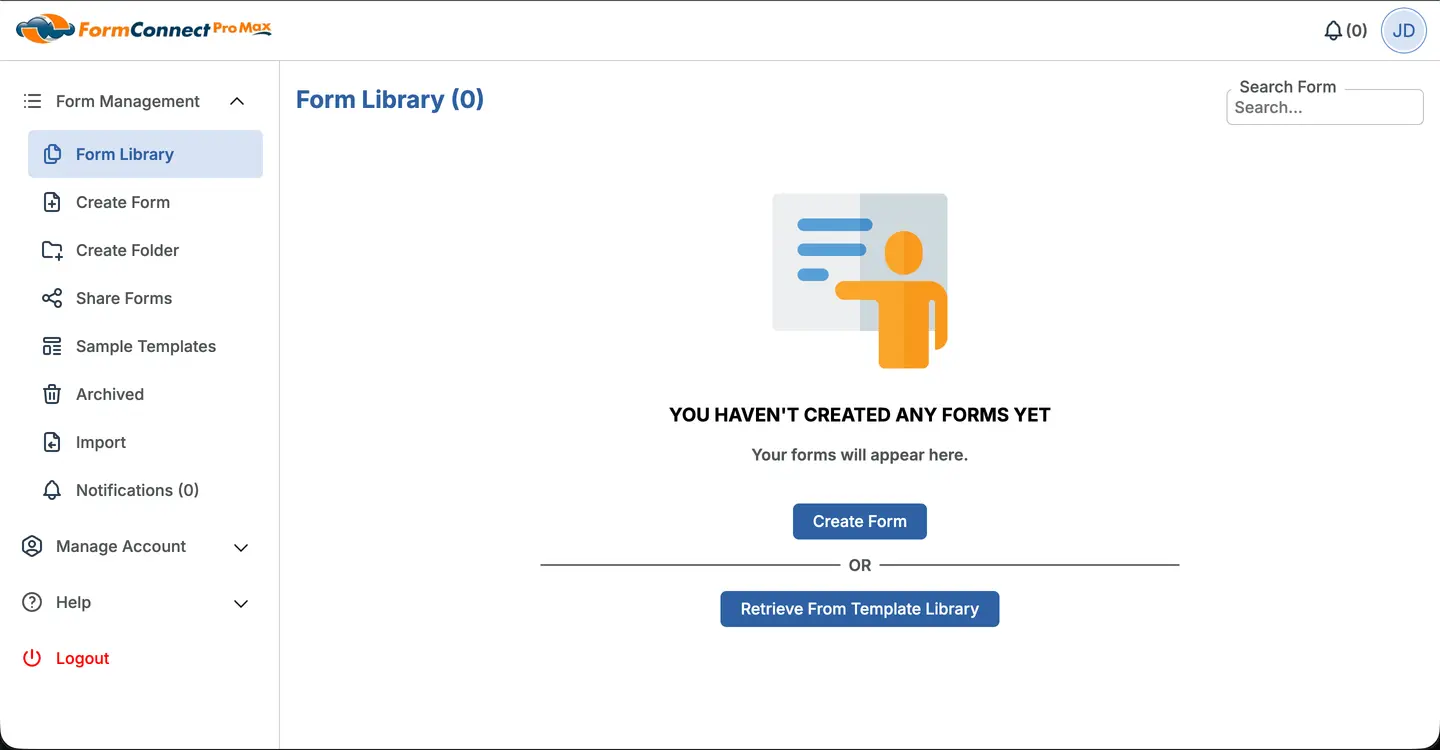
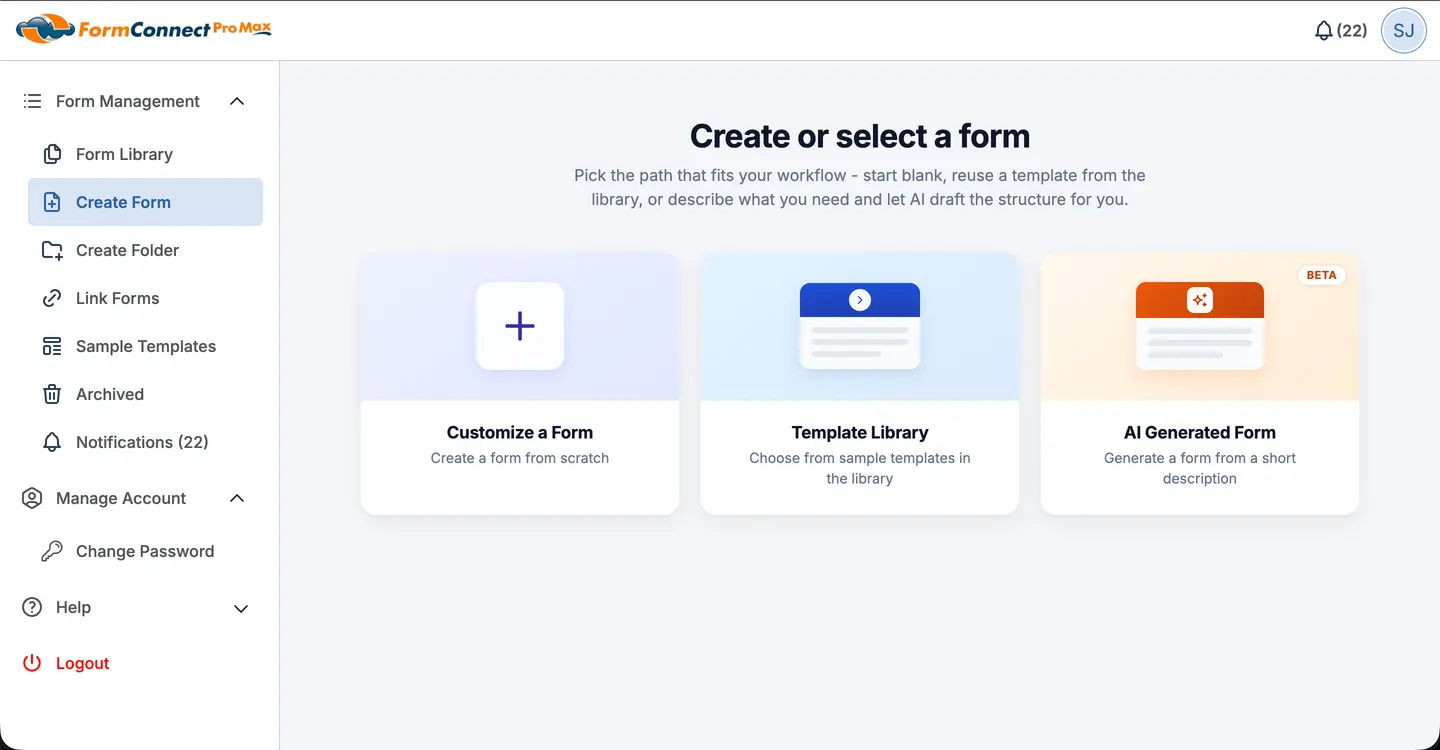
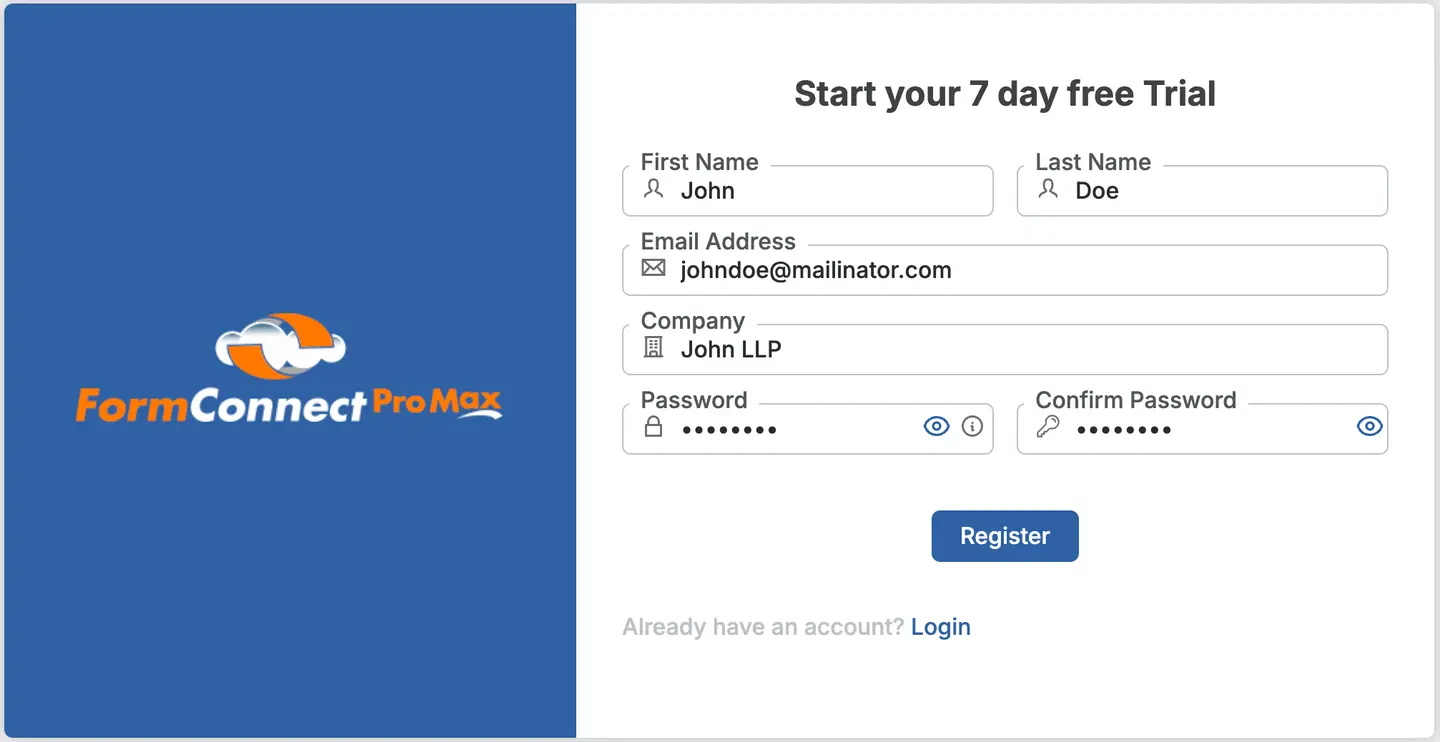
Fill Registration Form
Enter your name, email, company, and password to set up your account.
Submit & Create Account
Click Register to create your account.
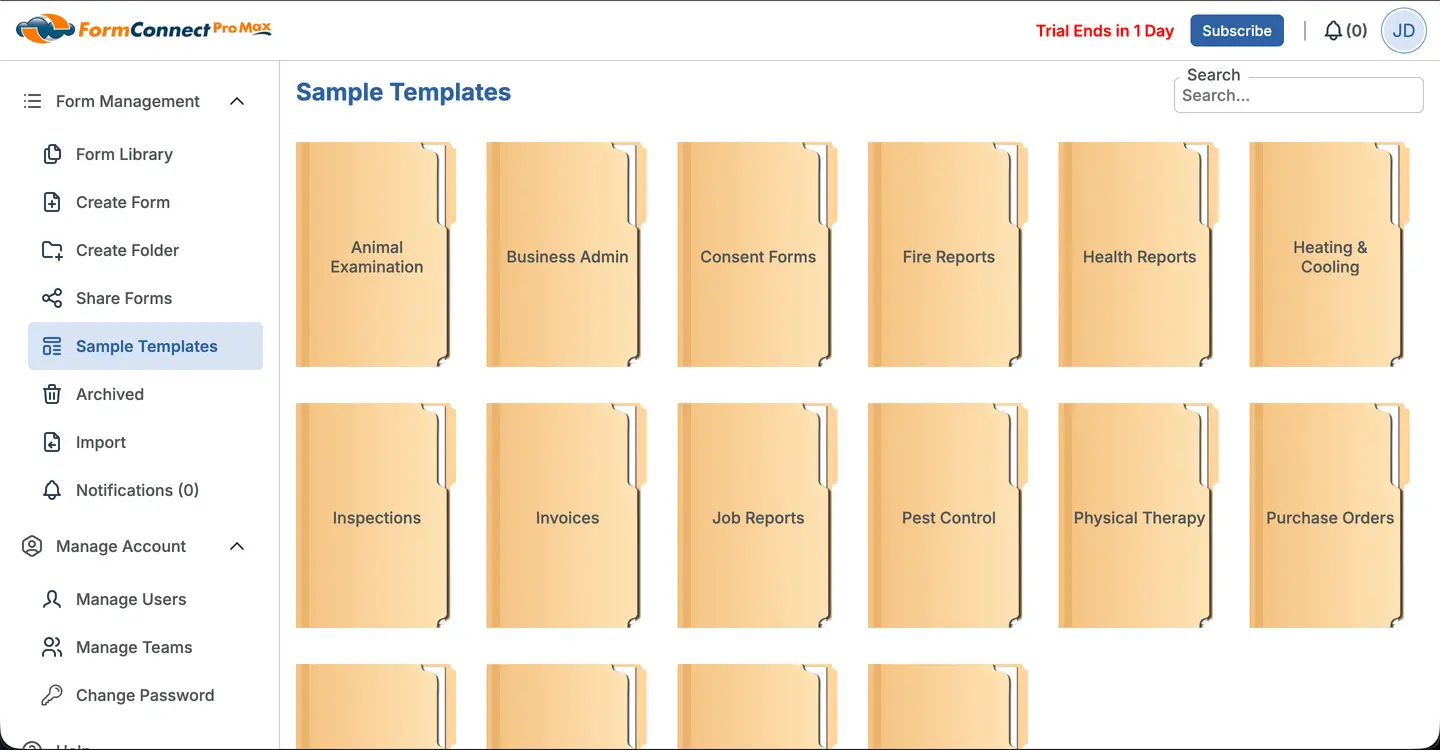
Sample Templates
Browse our curated template library organized by industry.
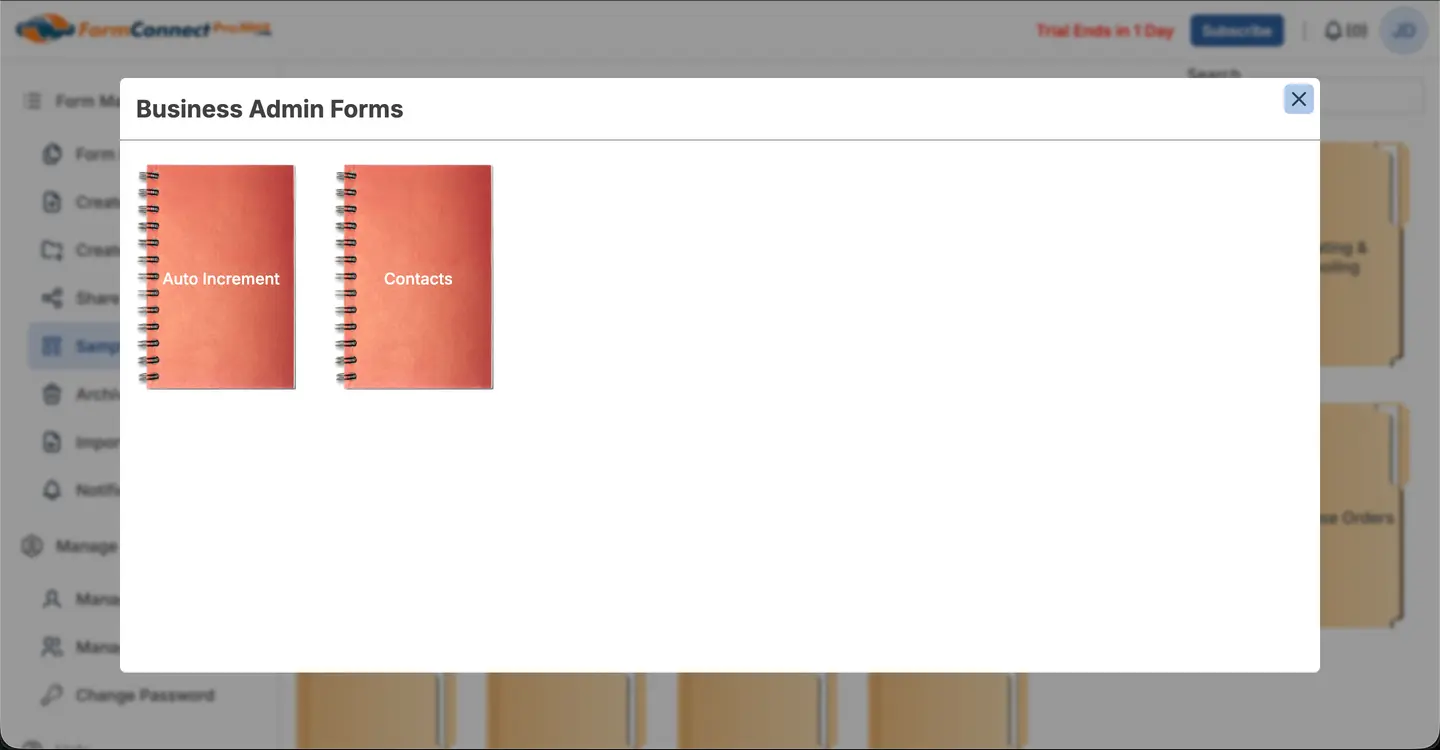
Choose a Template
Inside the folder, preview available forms. Click Contacts to see a preview and add it to your library.
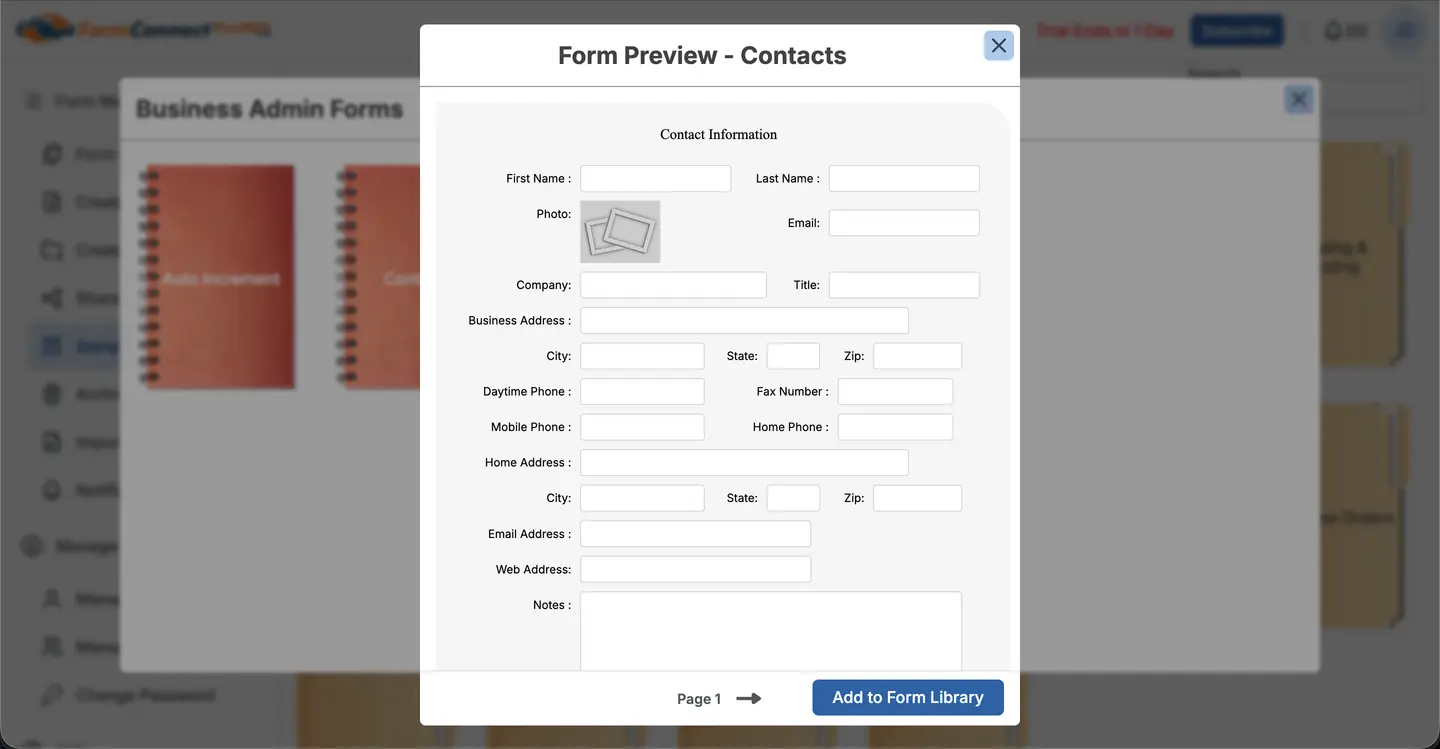
Add to Form Library
Click Add to Form Library to instantly add this template to your collection.
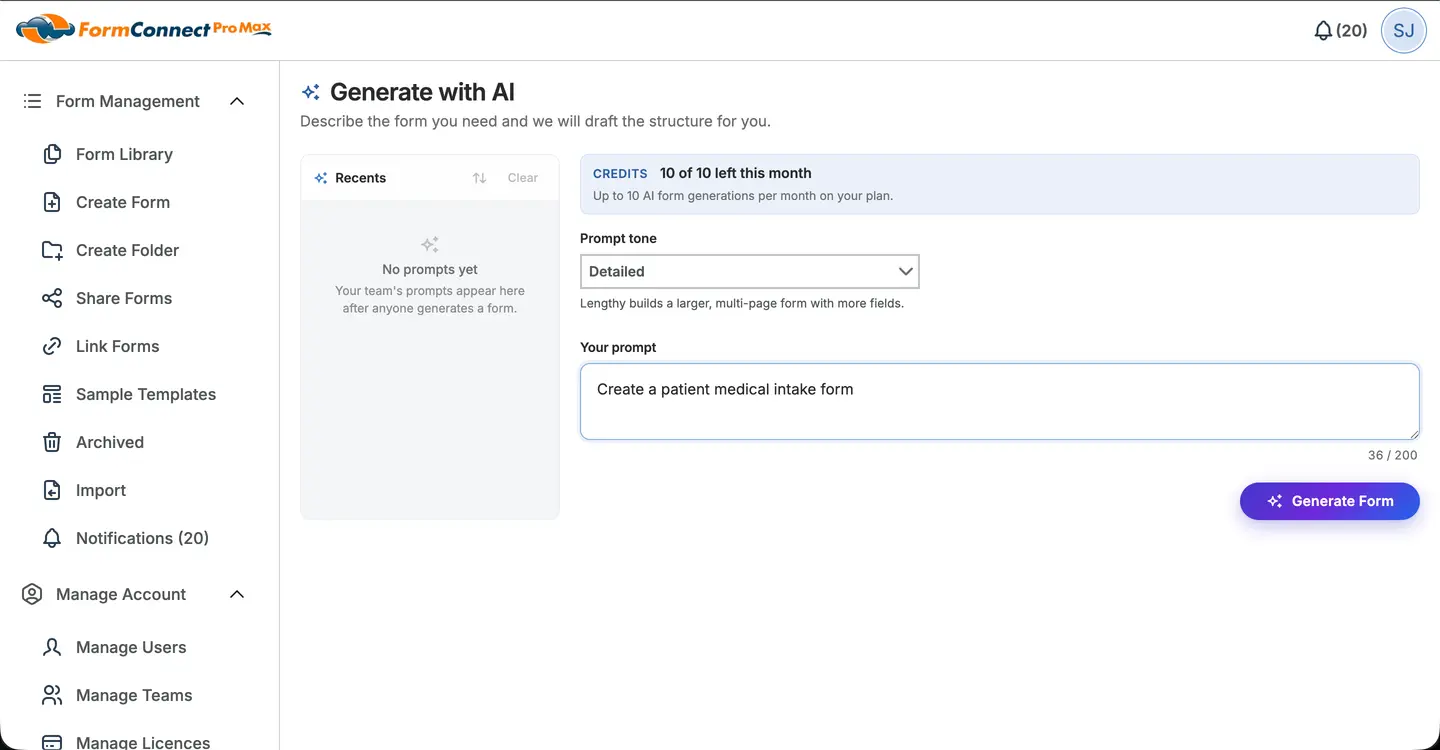
AI Generated Form
Describe the form you need and click Generate Form — AI will draft the structure for you.
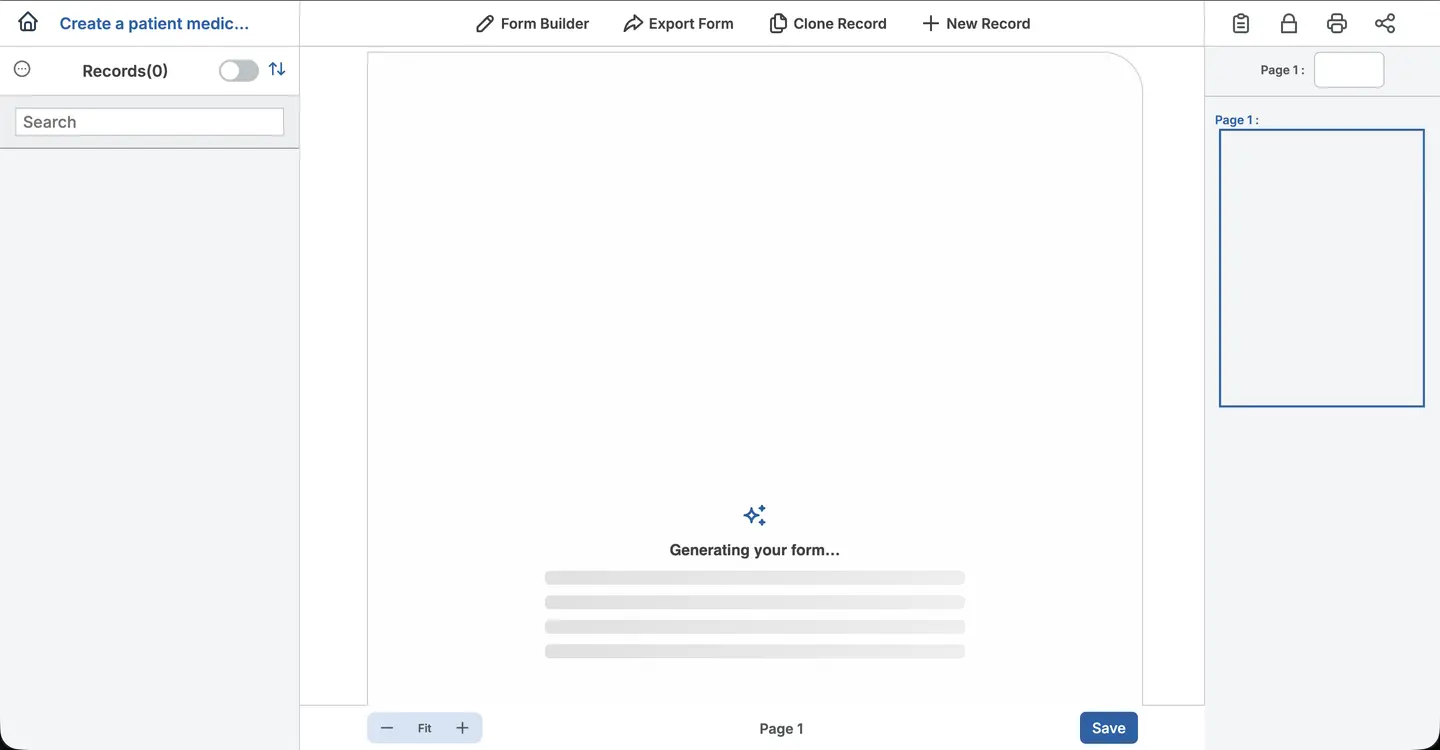
Generating Your Form
AI builds your form in the Form Builder — fields and pages are drafted automatically while you wait.
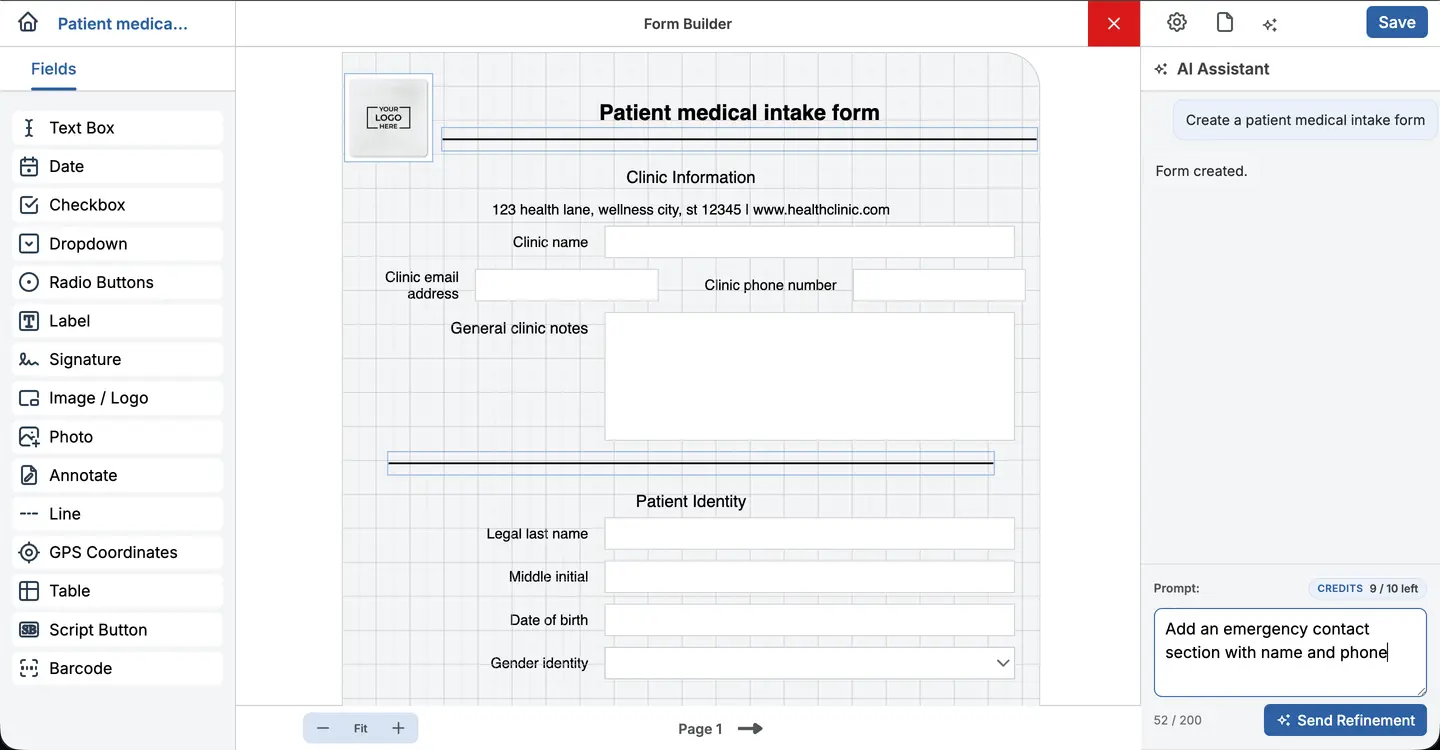
Refine with AI
Enter a follow-up prompt in AI Assistant and click Send Refinement to update your form.
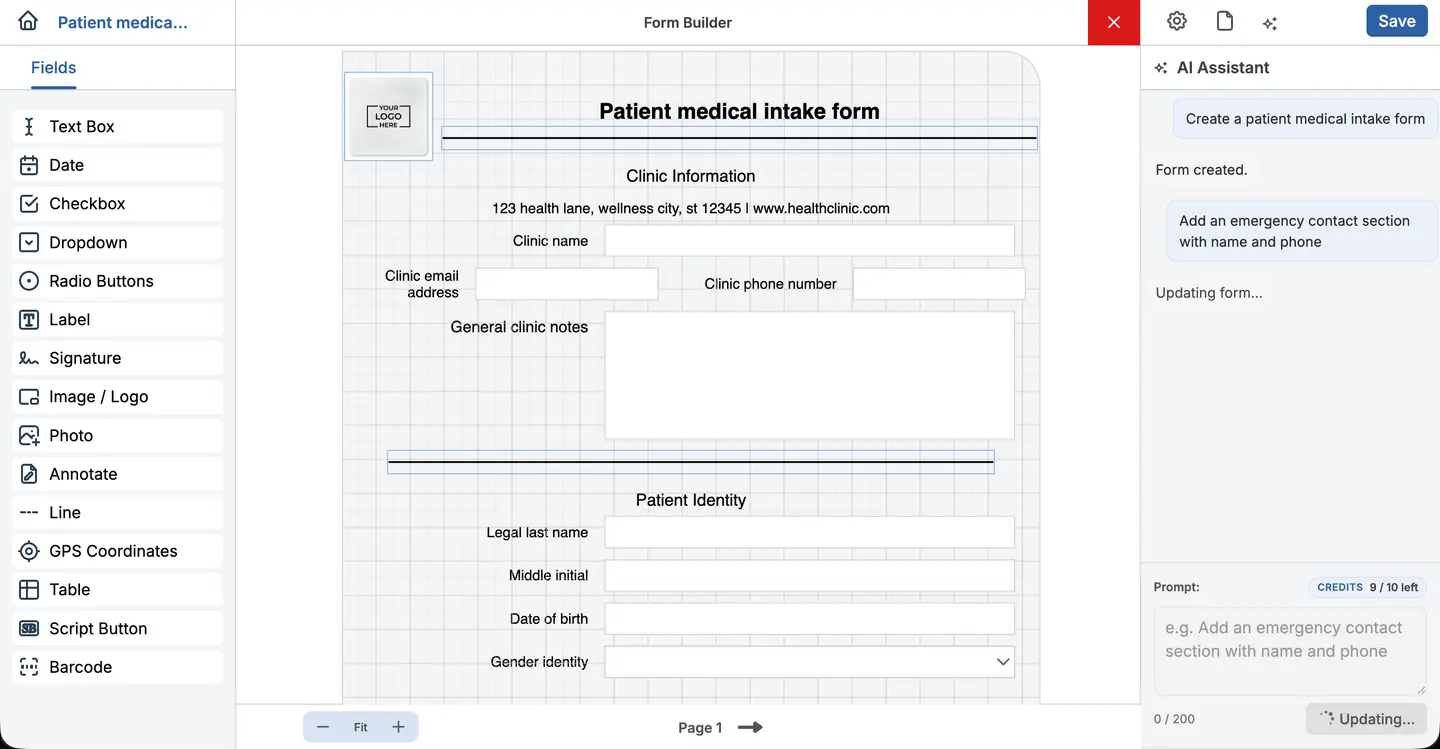
Updating Your Form
AI applies your changes — the form updates automatically while you wait.
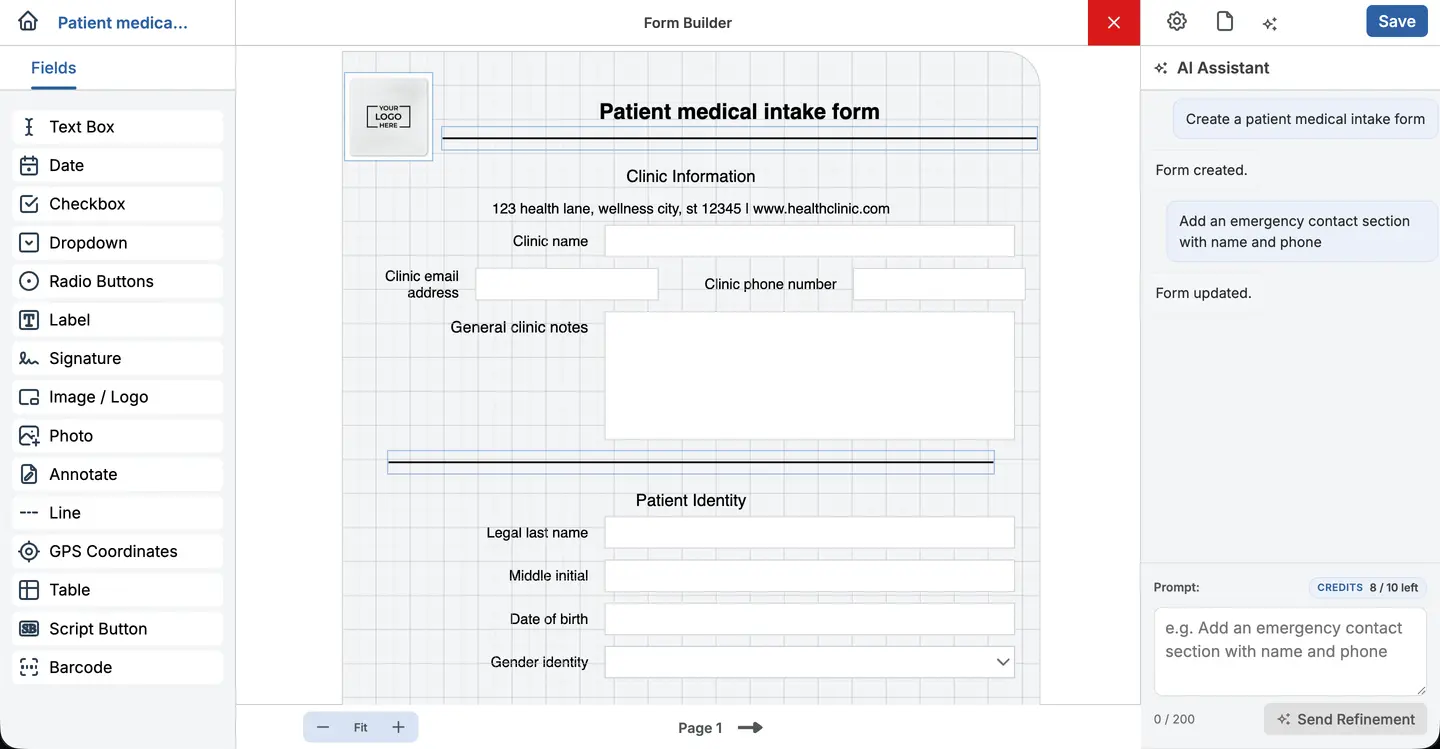
Form Updated
Your changes are applied and saved — review the updated layout and keep refining as needed.
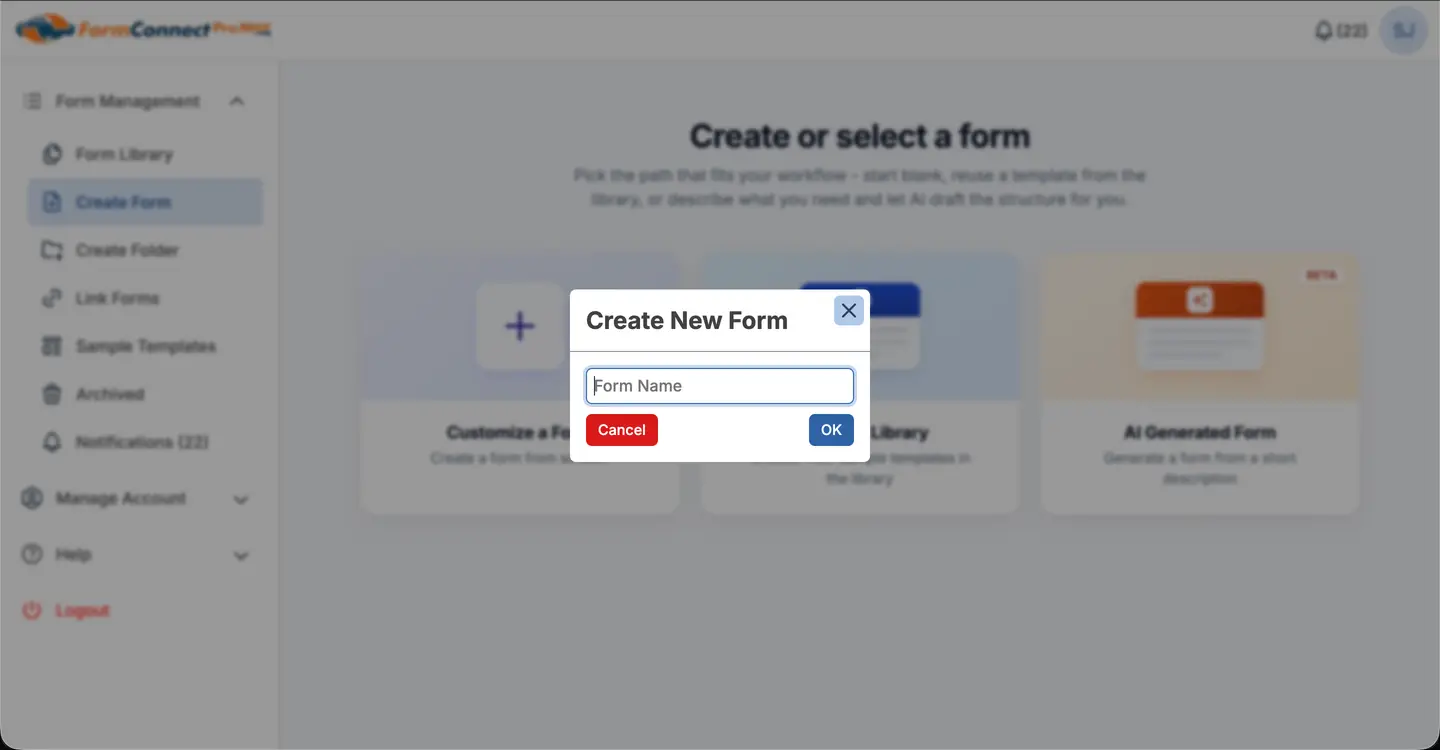
Name Your Form
Enter a form name and click OK — you'll be taken straight to the Form Builder.
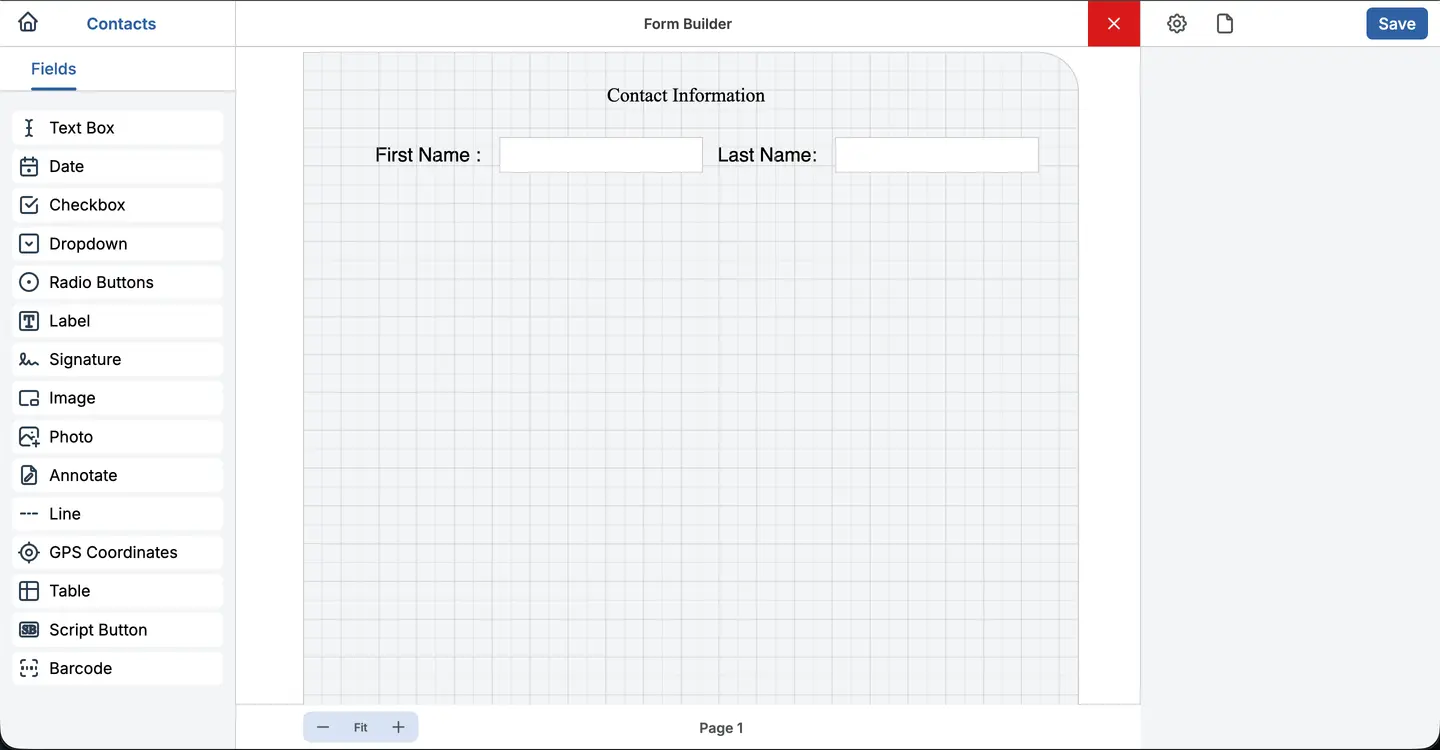
Field Types
Design your form visually with our drag & drop builder. Arrange fields on the canvas. Choose from Text, Date, Checkbox, Signature, GPS, Barcode, Photo, and many more field types.
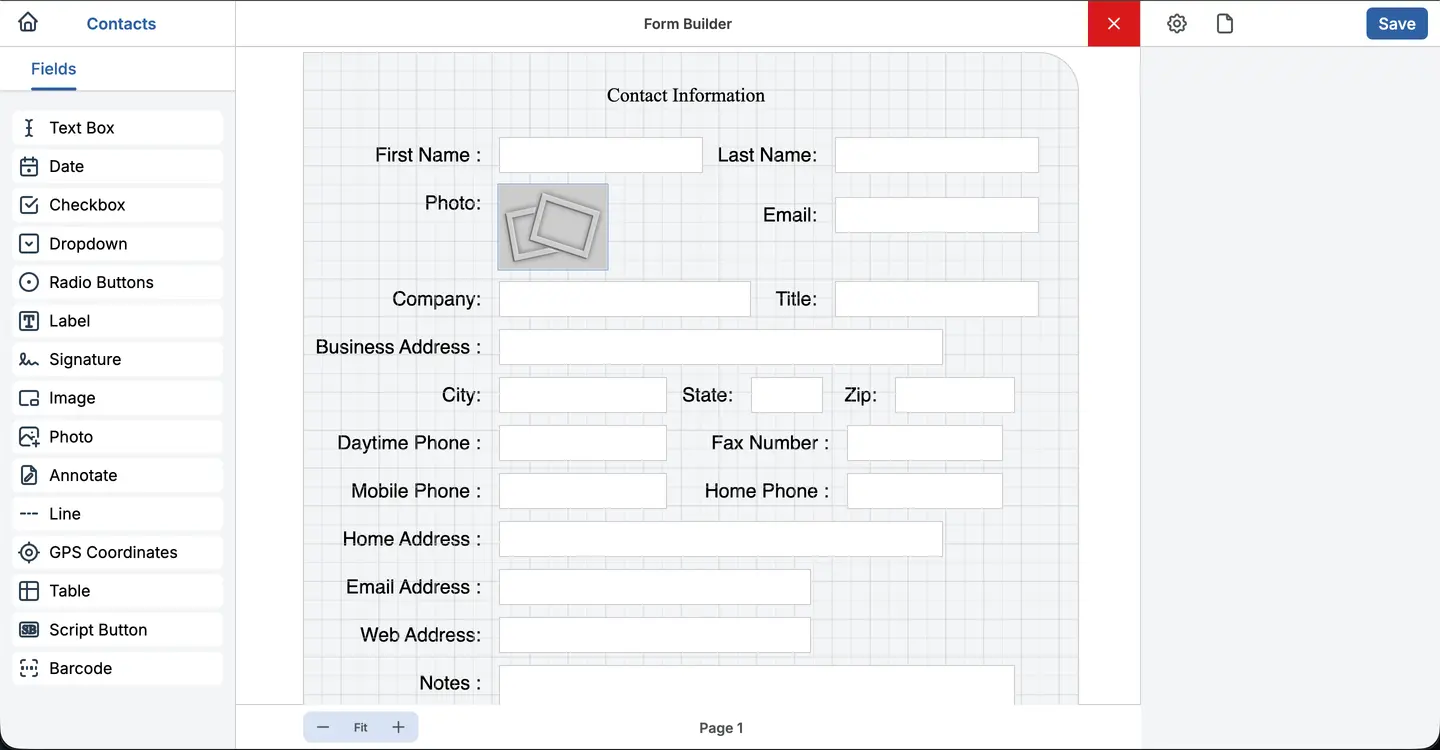
Save & Submit
Once your form is ready, click Save to save your design.
Import Form
Click Import from the sidebar to upload existing form connect forms.
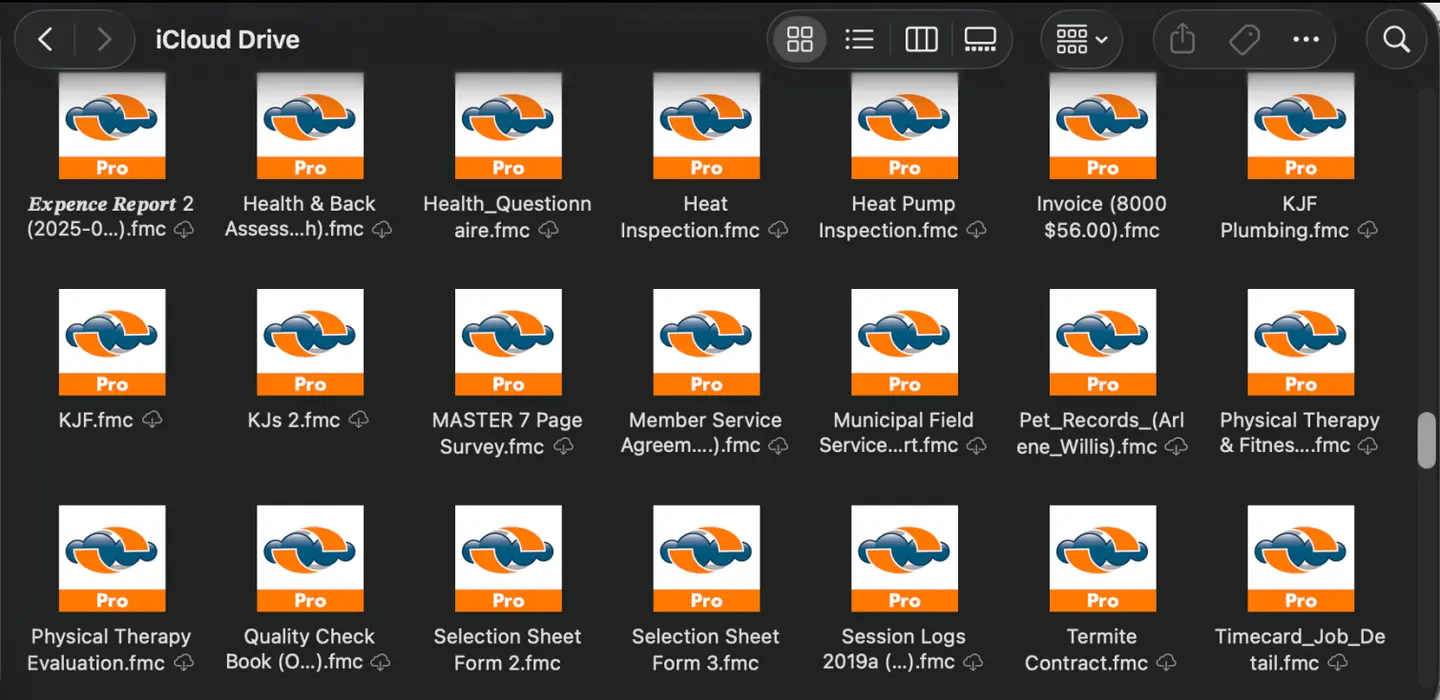
Upload & Recreate
Upload your .fmc form — this is the supported format for transferring existing forms to the FormConnect ProMax app.
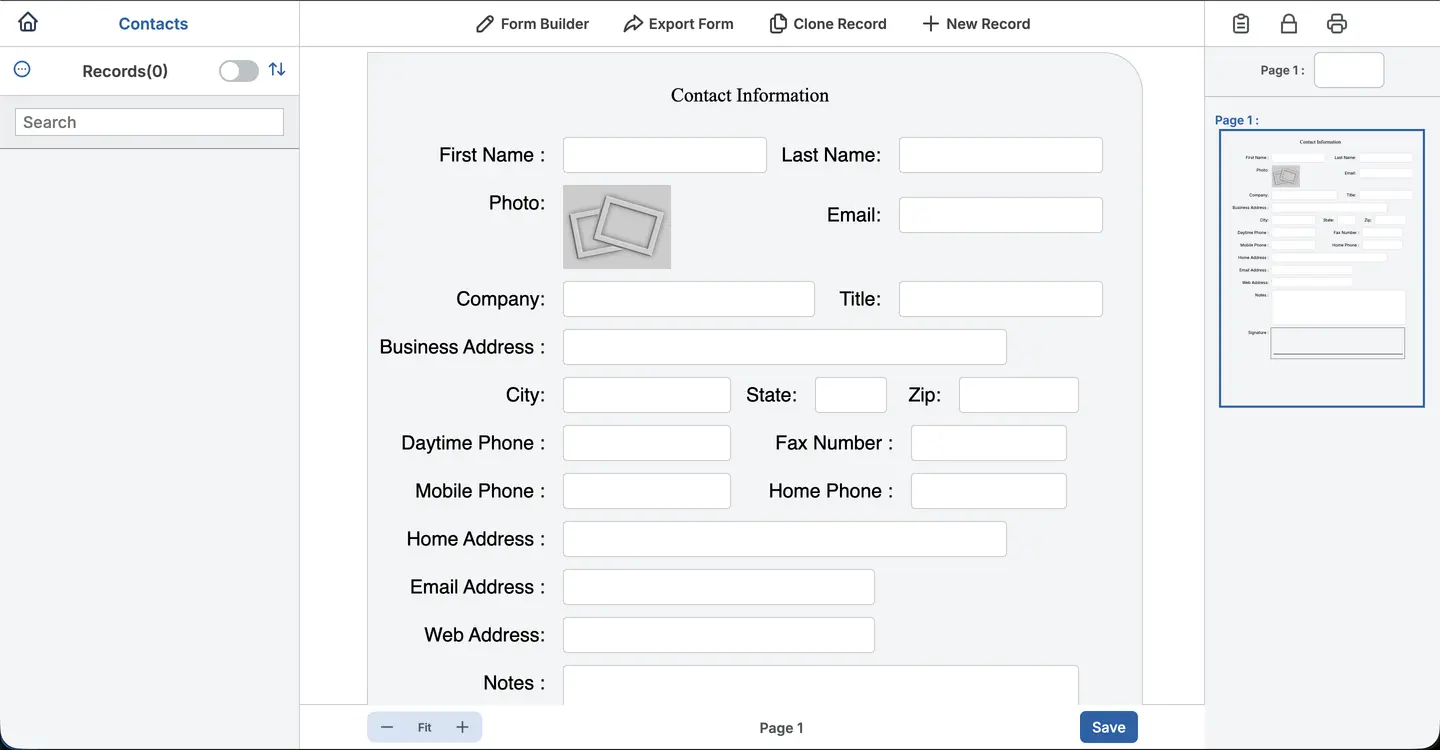
Create New Record
Click New Record to start fill out forms. This is where your team will capture data in the field.
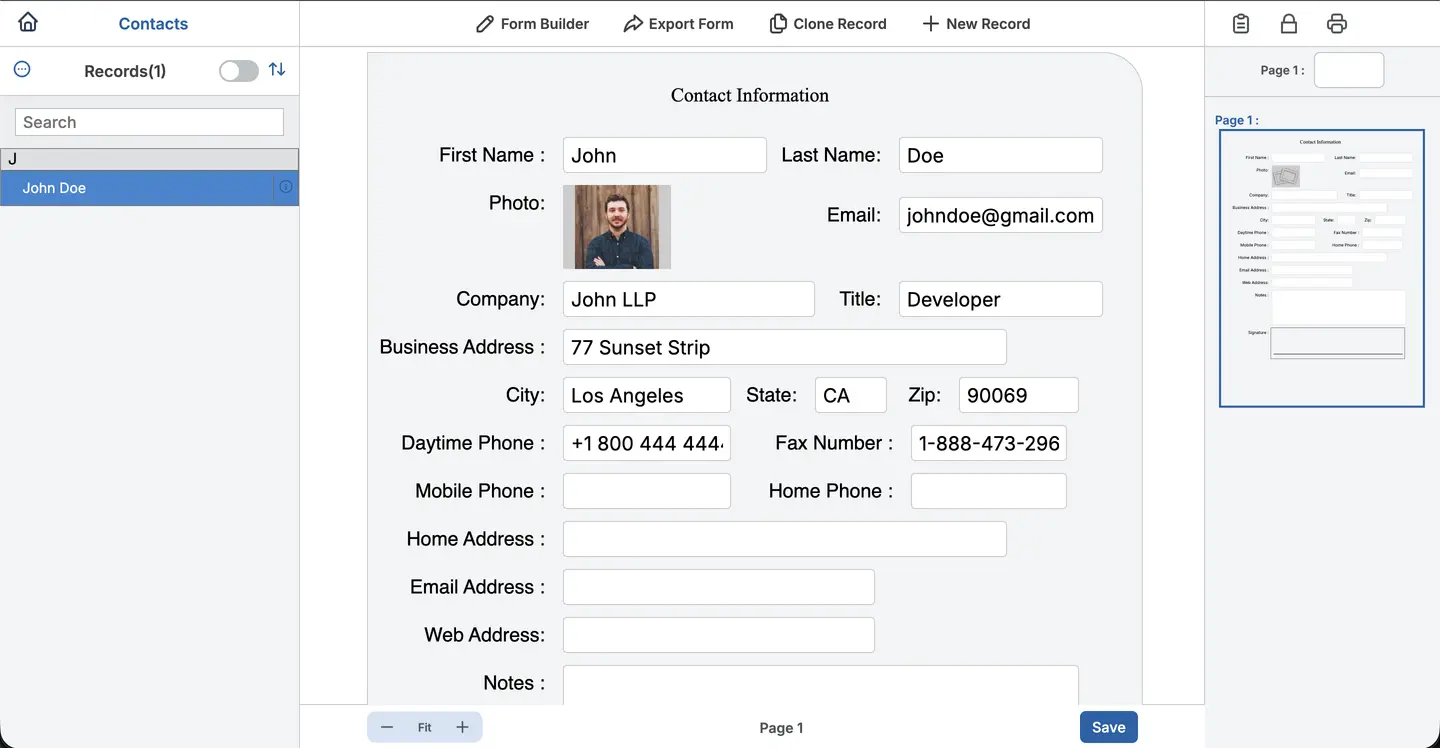
Fill out form and save
Fill out fields, capture data, and click Save. All submissions are saved and accessible from the records list on the left bar.
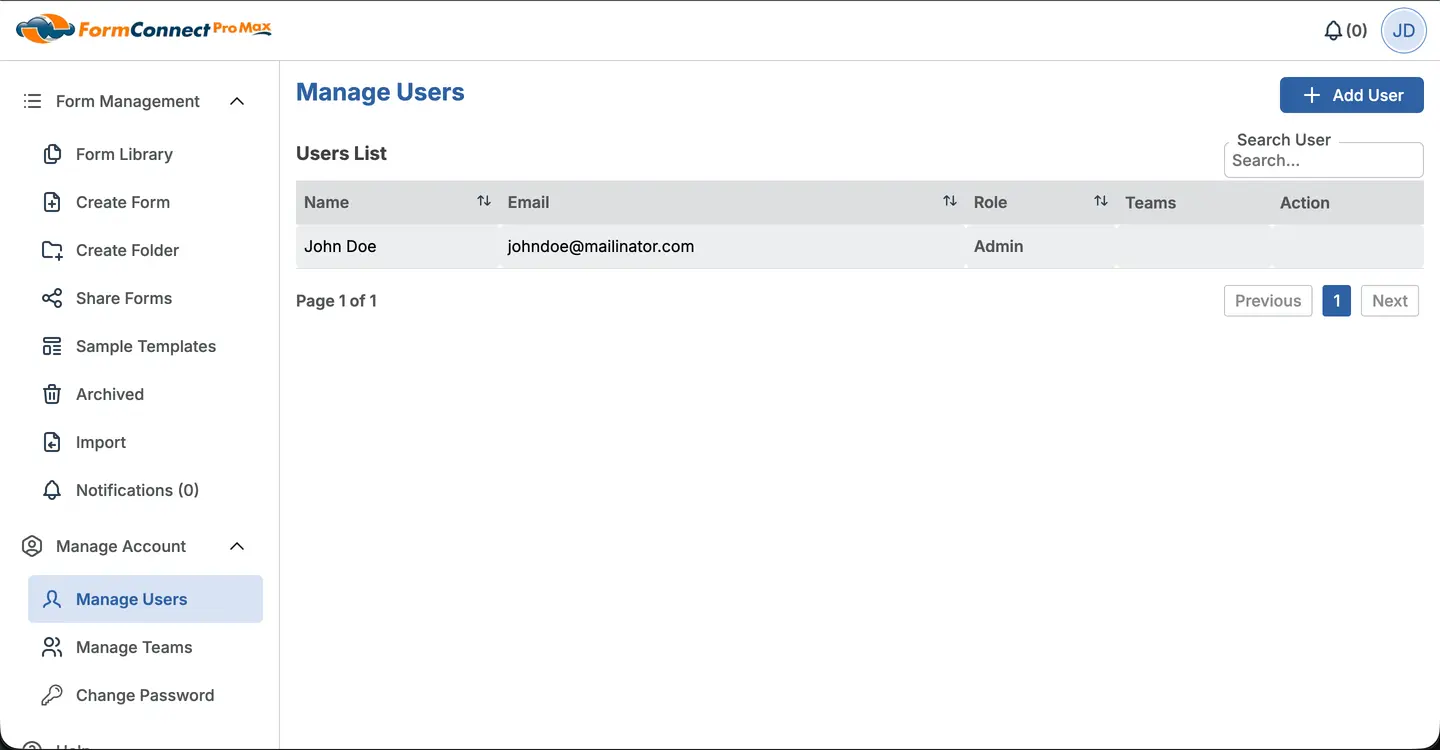
Add User
Click Add User to create an user account.
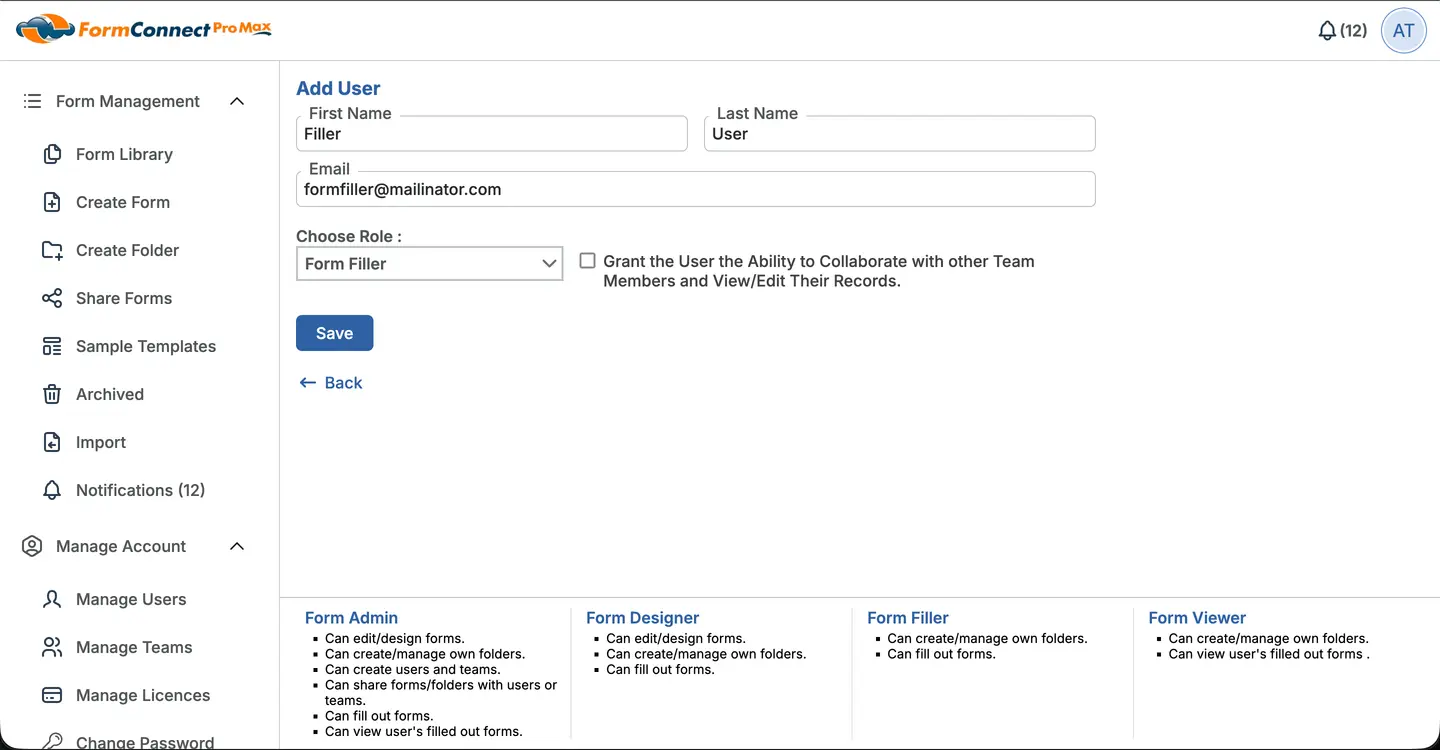
Fill User Form
Fill in the new user's details — name, email.
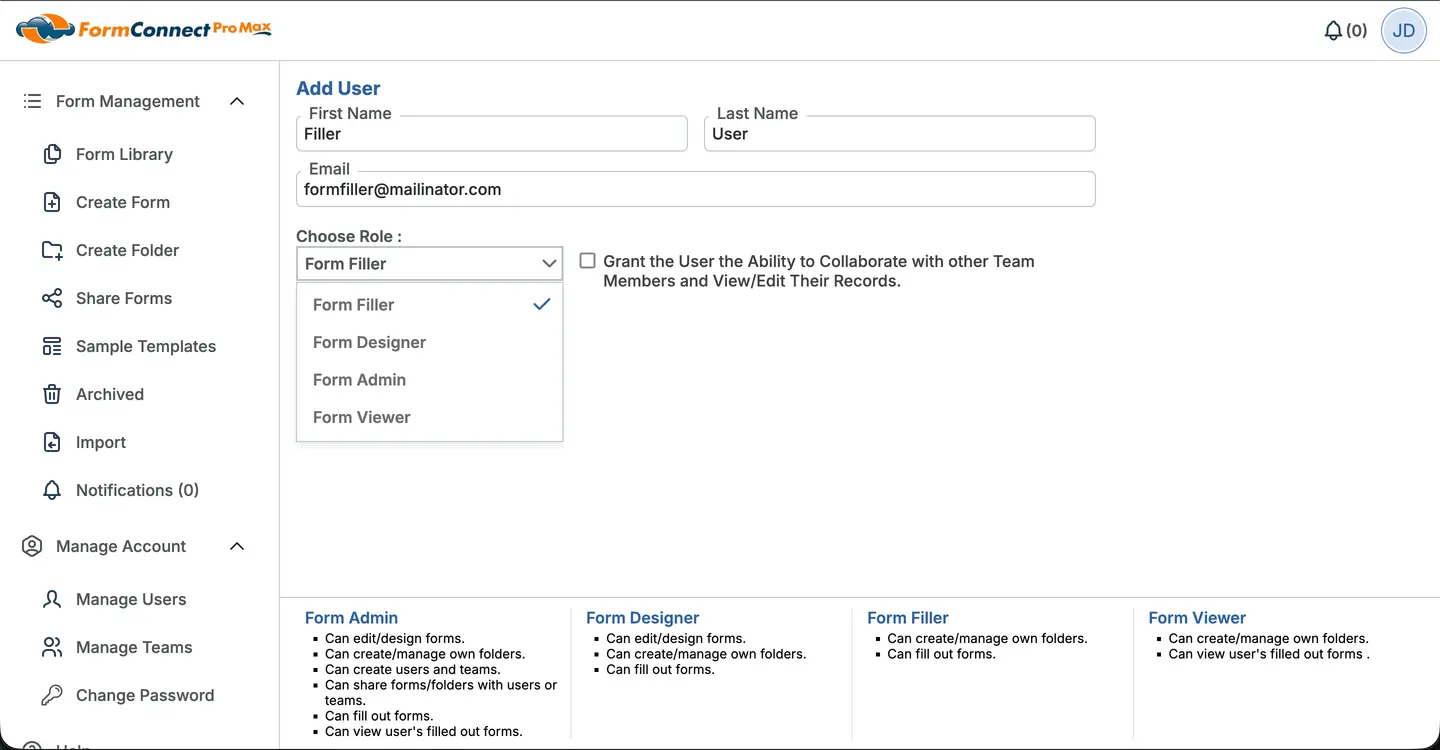
Select User Role
Assign a role to control access:
Form Filler — Can fill out forms.
Form Designer — Can edit/design forms, fill out forms.
Form Admin — Can edit/design forms, create users & teams, share forms, fill out & view forms.
Form Viewer — Can view user's filled out forms.
Save & Invite User
Click Save to add the user with their selected role. They'll receive an invitation.
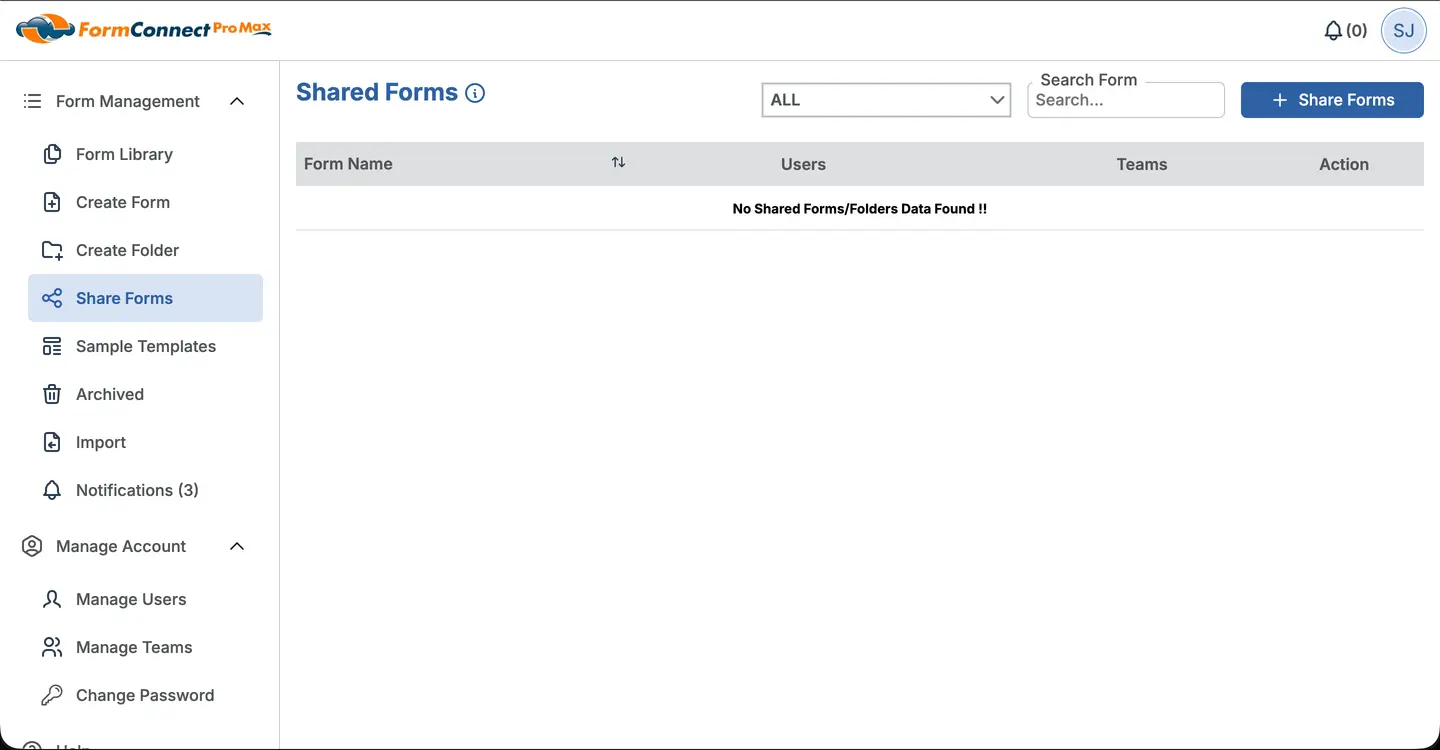
Share Forms Page
Navigate to the Share Forms page from the sidebar to start sharing forms with users.
Share Form Button
Click the + Share Forms button to open the form sharing wizard and select a form to share with users or teams.
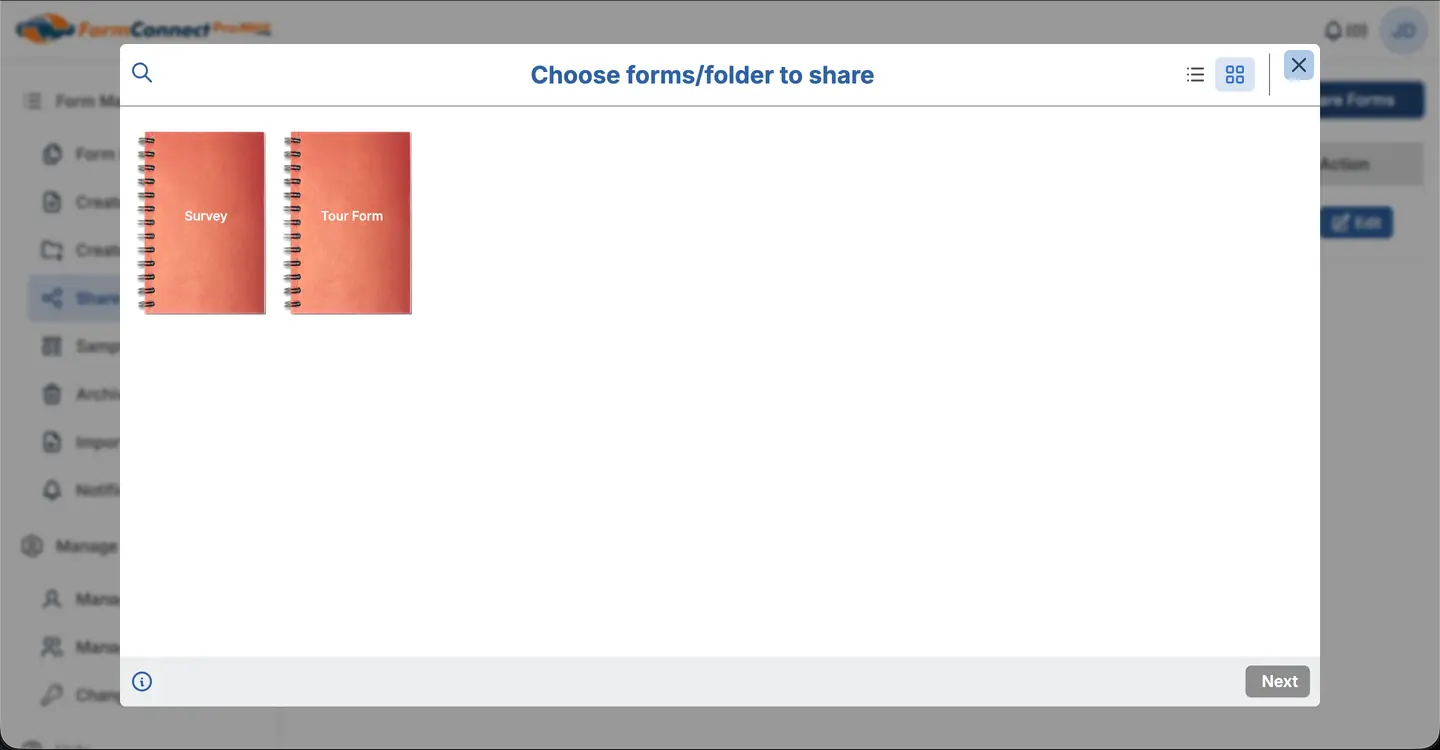
Share a Form
Select a form from the library. Share it with the users you choose.
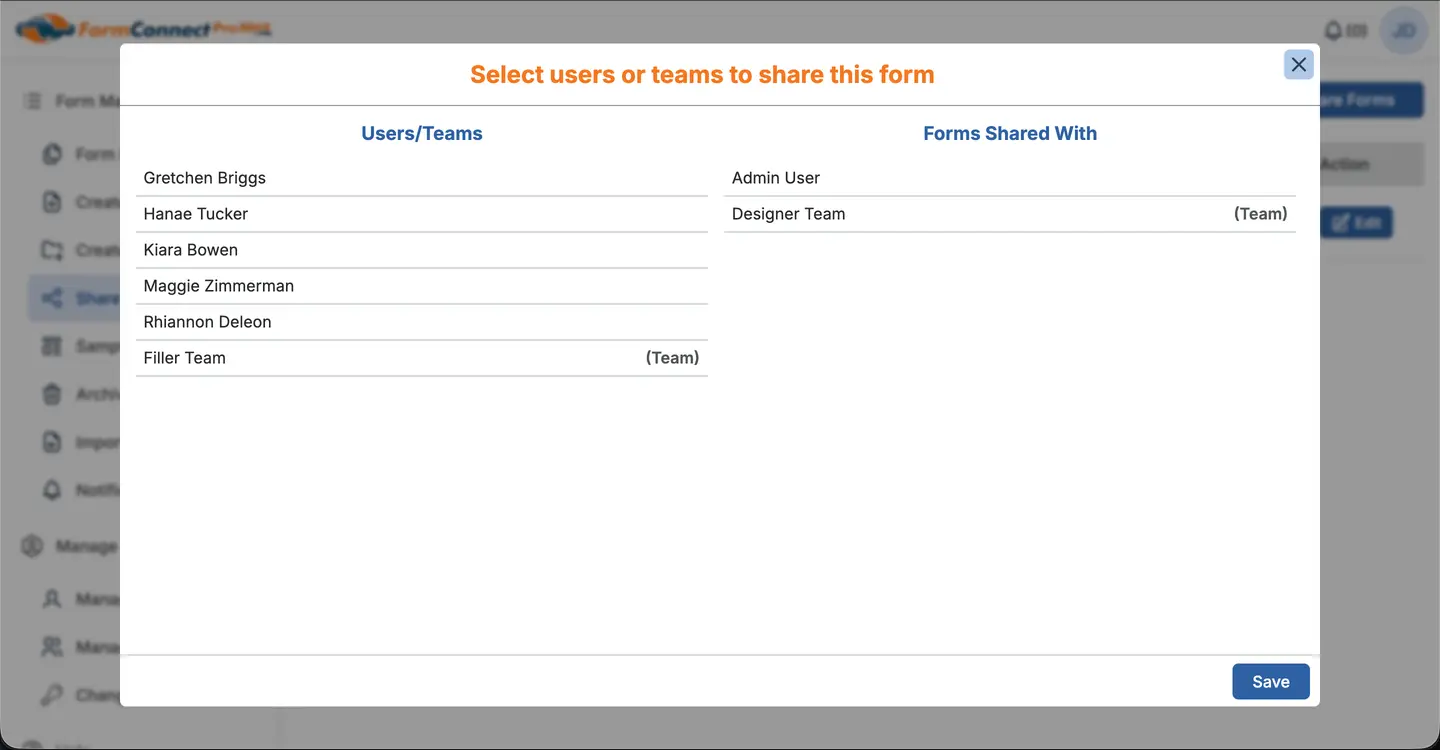
Share with Users/Team
Select users to share the form with.
Tour FormConnect
Section complete
Tour Complete!
You've seen the full power of FormConnect ProMax.
Ready to get started?